Examples of Shortcuts
At their simplest, macros are recorded sets of keystrokes and mouse-clicks which you typically perform, such as entering the current date, typing some frequently-used text or saving a file to a specific folder. More powerful than AutoText, macros can present situation-specific options to the user and carry out different instructions depending on the user's selections.
Basic Macros
A basic macro can:
- Insert basic text, i.e., the firm name, the firm address, a standard closing.
- Print the first page of a document on letterhead and the rest on second sheets.
- Insert a bullet-proof (pun intended) paragraph number on the current paragraph.
- Insert the document name and path into the footer.
- Insert longer text, such as a notary or signature block.
- Insert firm letterhead into a letter being sent via e-mail.
- Apply formatting, such as a heading style, a title or indented quotation.
- Be linked to a shortcut key. A handy example in New Mexico: Alt+A is often set to type "Albuquerque, NM 871" .
Advanced Macros
A more advanced macro can present a dialog box of text and other options to the user. (This requires knowledge of Visual Basic.) When the dialog box is completed, the macro assembles the document per the selections made by the user. For example, macros can:
- In a multi-signer office, ask for a sender's name and insert it into the letterhead of a letter.
- Present options for delivery instructions and signatures.
- Present options for case caption design.
- Direct the user to enter a recipient's name in a text box, then fill the name in multiple places in a document, including the potential second page header.
- Present options for interrogatories, jury instructions and estate planning, bankruptcy or other situation-specific text. The user selects options with the click of a mouse. This is much faster than cutting-and-pasting text, inserting small text files manually or deleting unneeded text from all possibilities stored in a single document.
- Regenerate all tables and automated codes in a document.
- Remember selections made from one use of a shortcut to the next. For example, when the user selects the office location in a multi-office company, the user's selection can be defaulted the next time, so the user does not have to spend time reselecting the location. When several documents are being prepared for the same case, the case number can be remembered. If a person is selected for a signature block, then the insert-a-graphic-signature macro can default to the person just selected as the signer.
Example: Delivery Instructions
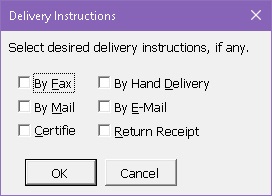
This dialog box displays the ways in which a particular business sends its letters. The use of checkboxes for the options indicates that all, some or none of them can be selected. When the user clicks OK, the macro inserts the selected items with the proper formatting, punctuation and the insertion of "and" if needed.
With macro access to a database, the fax number or e-mail address of the recipient can be entered into the instructions automatically.
Example: Letter Signature
The dialog box below shows three kinds of data entry items for a letter signature block. The radio (round) buttons indicate that only one signer can be selected. The checkboxes indicate options to be included; multiple can be selected. The text box at the top is for the user's initials; the initials are remembered for the next signature(s) until they are changed.
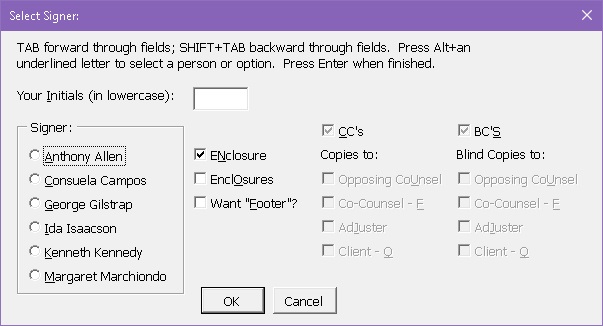
The signer list can come from a list in the macro or from a database. With additional text boxes, frequent, but not permanent, signers can be entered on the fly. Each time the dialog box is displayed, the selections can be left blank, defaulted or populated from the previous running of the macro.
In the case of the CCs and BCs, without integration with a database, the macro can insert placeholders after "cc:" with prompts indicating who is needed to be copied, i.e., *Opposing Counsel*. The user presses a key combination to jump from one placeholder to another.
Integration with a database enables the macro to reach into the data to find the opposing counsel name(s) and insert them automatically after the "cc:".
Example: Multiple Text Choices, Document-Specific
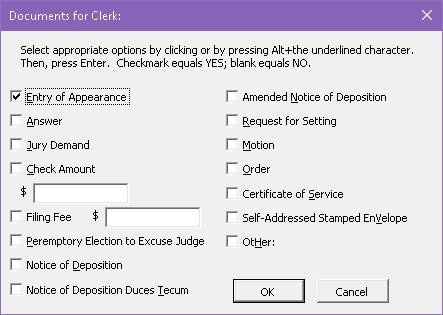
In this example, a unique dialog box for the "Letter to the Clerk of the Court" template displays potential items to be sent. For each item checked, the corresponding text can be inserted with paragraph numbers, bullets or in paragraph format.
Example: Save a File
In this dialog box, information that has been previously entered by the user or the macro itself can be used again. The case number has been repeated from the last macro that used a case number. The type of document has been set via the template that was used and is not included in the dialog box. With these two pieces of information, the macro figures out which subfolder of the client/case folder is the destination for this particular document.
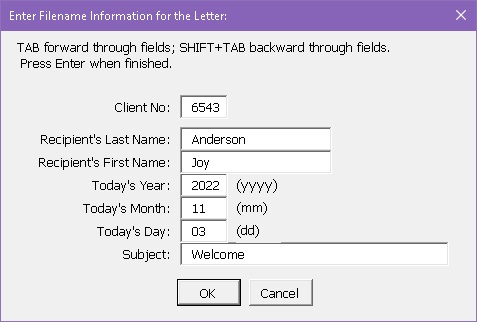
Today's date was automatically entered and parsed into month, day and year for ease of editing. The user usually just enters the recipient and the subject.
Regardless of the order in which the data is displayed, filenames can be formed in the order that works best for the client. In this example, when this dialog box is completed, the letter will be saved in the Correspondence folder under case number 6543 with the name Anderson, Joy 2022-10-19 Welcome.docx.
Macros and Templates Integrated with a Database
Here's one way an integrated system of macros, templates and a database can work. A law office example might behave as follows.
The user selects a pleading template. The macro displays a dialog box for the user to select the case.
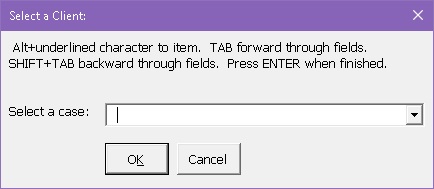
Click the dropdown arrow at the right end of the text box to display the cases available.
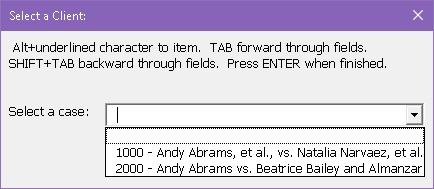
From that information, the macro can:
- Find and insert the proper case caption into the pleading.
- Gather the names of the parties, counsel and other case-related contacts from the database.
- Insert data into the pleading in various places, as needed.
- Adjust behavior depending upon the needs of the document:
- When only one of a party exists, i.e., one Plaintiff, data regarding that party is automatically entered.
- When only one of a party (i.e., Plaintiff) is needed and multiple exist, the user is presented with all the Plaintiffs for selection of one.
- In some pleadings, all Plaintiffs are needed. The macro automatically includes all the Plaintiffs and inserts them in the formats needed (i.e., paragraph style or listed on separate lines or including signature lines).
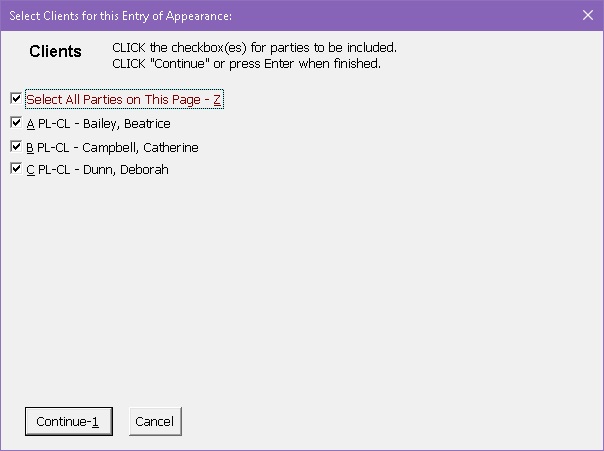
- In other pleadings, one, some or all of the Plaintiffs could be included. The dialog box below displays a list of folk eligible for that particular situation and the user chooses who to include at that time. This list includes three client Plaintiffs, though the box can hold 25. If more than 25 Plaintiffs exist in the case, additional dialog boxes will be displayed.
- Insert various forms of names, their pronouns and verbs corresponding to the requirements of the document and any user selections. Phrases such as "he has", "She submits", "they accept" and "Plaintiffs have" will be entered with proper capitalization of the pronoun, as needed.
- Offer a choice of document-specific details, such as interrogatories, jury instructions or items to submit to the Clerk of the Court.
- Ask for the signer, then insert that signer's signature block.
- Ask the user for the subject of the pleading, then save the document with a standardized filename in the corresponding litigation subfolder.
All of this within seconds.
Unique Macro Examples
The examples previously presented are common. Here are a few macros that Mary McArthur built which were rather unique.
Two versions of the same information
A doctor who prepared documentary reviews of medical records included two historical lists of health care provider visits in the reviews. One was sorted chronologically, the other by health care provider. The office manager would enter four pieces of information about each report for the provider, then spend a great deal of time rearranging the order, moving columns of information and copying details to create the chronological report.
The solution was to have the office manager enter the data in a table in a different order, then allow the macros to do the work of creating both reports. One macro sorted the table chronologically with the date in the first column and filled in rows for months of no health care services. The second macro sorted the same list by health care provider, moved dates to the second column and removed subsequent references to the health care provider's name. These reports were generated in minutes rather than hours. With reports produced so quickly, productivity on this task increased.
Data in plain text format massaged into document-ready form
For a quantitative research office, a macro transformed the output of a statistics program into the format needed for a final document. Repeated questions were deleted, unnecessary rows were deleted, unnecessary page breaks were removed, counts were removed with percentages left, unneeded percentages were replaced with symbols, blank rows were added. All were formatted as needed.
Data to elegant directory
Using a similar approach, the data from a database of renewable energy companies was massaged into two formats for a directory. One macro produced company pages with company descriptions, contact information and symbols denoting affiliations with professional associations. The service/product pages were divided into segments of the industry (i.e., electricity, thermal, appliances), niches in that segment (i.e., for electricity: wind, photovoltaic, hydro) and services or products within each niche (i.e., research, manufacturing, design, sales, installation and repair). One set of these macros formatted the directory for 8.5"x11" printing, while another formatted a hyperlinked form for the web.
Integrated backups
For a software support person in a large law firm, a macro was developed that copied the files from a number of backups of the same data structures located on one drive into a single integrated data structure on another.
When files of the same name were encountered, the macro appended a number to the filename so as not to overwrite a potentially different version. Today it would take less than half the time I imagine, but at the time the macro ran for 24 hours to do the job.
Document compiled from potential selections of text
Here's one more example, the basics of which were covered in the Letter to the Clerk example, to demonstrate the impact one large macro had on one person. There was an attorney who had a 150-page document of bits of bankruptcy language that could be used in a case. She would copy the file for a new situation, then remove all the language that did not apply to that case. Being in a busy office, she worked many a night till 8pm.
The attorney's macro was written to create a basic document with all the common parts, then to present a series of dialog boxes, each containing 10-20 potential text inclusions for the case. With a few clicks of a mouse, the case-pertinent language was entered and the attorney was able to focus right away on the particulars. Able now to leave work at a normal time, she said something along the line of "Thank you for giving me my life back." In time, she trusted what was produced and allowed the macros to be shared with the rest of the office, so documents could be drafted for her.
For further information or to arrange a demonstration of Word shortcuts integrated with and Access database, contact The Software Lady.